First Analysis with OSS IQ
In this tutorial, you will run your first dependency analysis with OSS IQ. You’ll learn how to scan a local project, interpret the results from the command line, and generate an interactive HTML report to explore dependency health in-depth. This guide focuses on understanding version drift, transitive risk, and maintenance health—not just CVEs.
What you’ll build:
By the end, you’ll have performed a full dependency analysis and know how to use the ossiq to assess any project’s dependencies.
Prerequisites:
Python 3.11+ or Node.js
A GitHub account
Basic familiarity with the command line
Time to complete: 10-15 minutes
Step 1: Install OSS IQ
Install ossiq with the toolchain you already have:
uv tool install ossiq           # Python
npm install -g @ossiq/cli       # Node.js: a native binary, no Python needed
Check the installation:
ossiq --version
You should see output similar to ossiq version: 0.1.x.
Step 2: Log In to GitHub
OSS IQ queries the GitHub API to gather repository health data for each dependency. Without a login, GitHub allows 60 requests an hour, which is not enough for most projects.
Start the login:
ossiq auth loginOpen https://github.com/login/device and enter the code that the command prints.
Approve OSS IQ on GitHub. The command prints
✓ Logged in as @your-nameand exits.
OSS IQ keeps the token in your operating system’s secret store, such as macOS Keychain. For details, see Log in to GitHub.
Step 3: Set Up the Sample Project
Now, let’s create a small sample Python project to analyze. Create a new directory and inside it, a requirements.txt file.
mkdir ossiq-sample-project
cd ossiq-sample-project
touch requirements.txt
Open requirements.txt and add the following dependencies:
# requirements.txt
requests==2.28.1
click==8.1.3
We are using older versions of these popular packages to demonstrate how OSS IQ highlights outdated dependencies and potential vulnerabilities.
Step 4: Run Your First Analysis
With your sample project ready, you can now run the status command. ossiq will automatically detect the requirements.txt file in the current directory.
Run the scan from within the ossiq-sample-project directory:
ossiq status .
You should see console output that looks something like this:
╭────────────────────────────────────────────────────────────────────────────╮
│ 📦 Project: ossiq-sample-project                                           │
│ 🔗 Packages Registry: PYPI                                                 │
│ 📍 Project Path: ../../ossiq-tutorials/first-analysis/ossiq-sample-project │
╰────────────────────────────────────────────────────────────────────────────╯


                                 Production Dependency Drift Report
┏━━━━━━━━━━━━┳━━━━━━┳━━━━━━━━┳━━━━━━━━━━━┳━━━━━━━━━━━━━┳━━━━━━━━┳━━━━━━━━━━┳━━━━━━━━━━┳━━━━━━━━━━━━━┓
┃ Dependency ┃ CVEs ┃ Status ┃ Installed ┃ Recommended ┃ Latest ┃ Distance ┃ Time Lag ┃ Version Age ┃
┡━━━━━━━━━━━━╇━━━━━━╇━━━━━━━━╇━━━━━━━━━━━╇━━━━━━━━━━━━━╇━━━━━━━━╇━━━━━━━━━━╇━━━━━━━━━━╇━━━━━━━━━━━━━┩
│ requests   │  5   │ Minor  │ 2.28.1    │ 2.28.1      │ 2.34.2 │       15 │       4y │          4y │
└────────────┴──────┴────────┴───────────┴─────────────┴────────┴──────────┴──────────┴─────────────┘


                         Constraint Widening Opportunities
┏━━━━━━━━━━┳━━━━━━━━━━━━━━━┳━━━━━━━━━━━━━━━━━┳━━━━━━━━━━━━━━━━━━┳━━━━━━━━━━━━━━━━━┓
┃ Package  ┃ Current Range ┃ Latest In-Range ┃ Latest Available ┃ Suggested Range ┃
┡━━━━━━━━━━╇━━━━━━━━━━━━━━━╇━━━━━━━━━━━━━━━━━╇━━━━━━━━━━━━━━━━━━╇━━━━━━━━━━━━━━━━━┩
│ click    │ ==8.1.3       │ 8.1.3           │ 8.4.1            │ ==8.4.1         │
│ requests │ ==2.28.1      │ 2.28.1          │ 2.34.2           │ ==2.34.2        │
└──────────┴───────────────┴─────────────────┴──────────────────┴─────────────────┘
Step 5: Understand the Console Output
The console output gives you a high-level summary of your dependencies’ health. Here’s what the columns mean:
CVEs: The number of known Common Vulnerabilities and Exposures for the installed version of the package.
requests==2.28.1has a known vulnerability.Status: Categorizes how far behind the installed version is from the latest version (e.g.,
Major,Minor,Patch,Latest).Installed: The version of the package currently in your project.
Recommended: The solver-recommended update target (the safest version to upgrade to).
Latest: The most recent stable version available in the package registry.
Distance: The number of releases between your installed version and the latest version. A high number indicates significant divergence.
Time Lag: How far behind (in time) your installed version is from the latest release.
Version Age: How old the installed version itself is.
This view quickly shows you that requests has a security issue and both packages are lagging behind their latest versions.
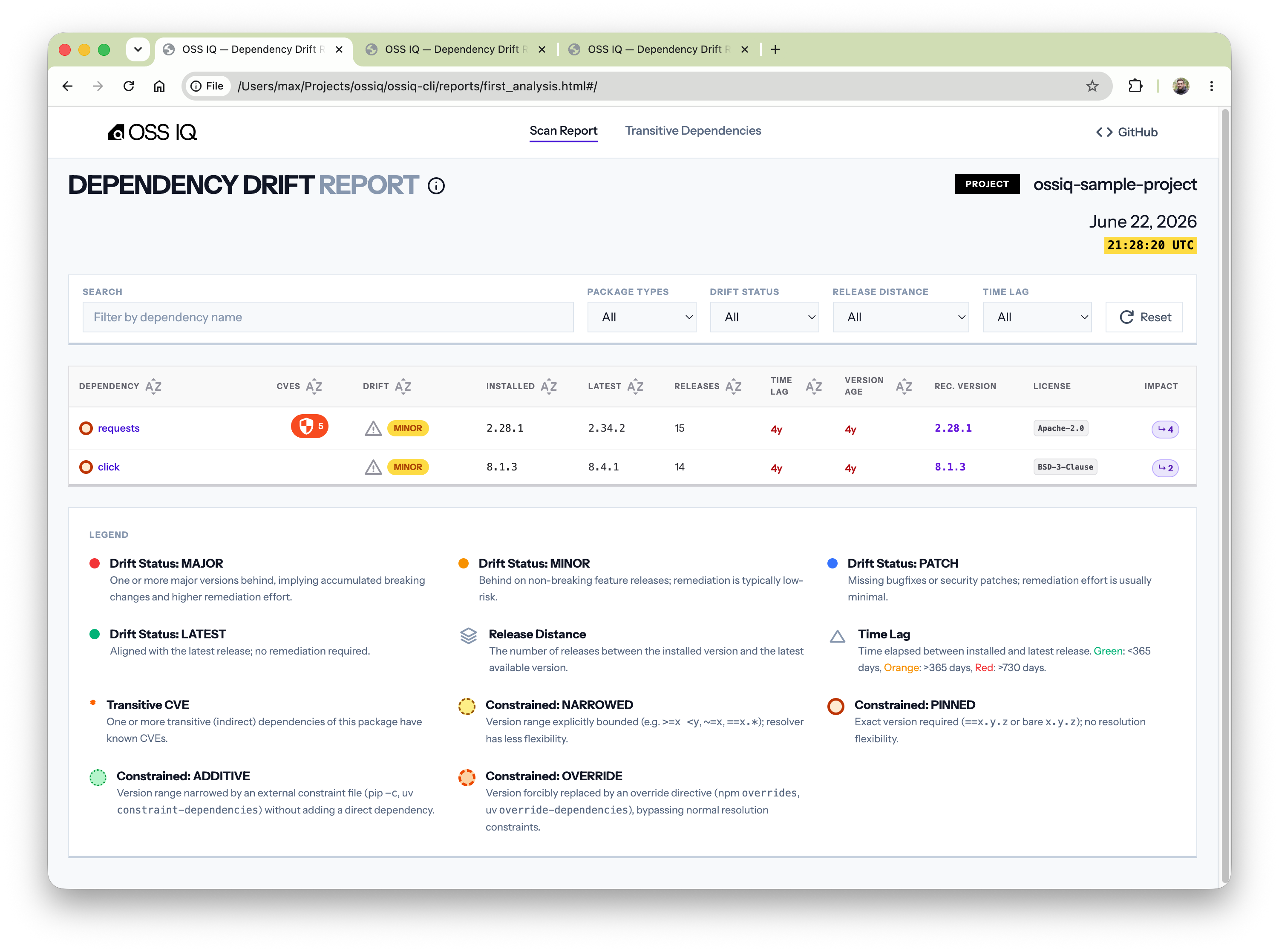
Step 6: Generate and Explore the HTML Report
While the console output is useful for a quick overview, the interactive HTML report provides a much richer experience for exploring your dependencies.
Generate the report by running the html command.
ossiq html . --output report.html
This will create a report.html file in your project directory. Open this file in your web browser.
You’ll see a detailed, interactive report where you can:
Filter dependencies by name.
Sort by different metrics like Time Lag or Release Lag.
Click on a package to see more details, including a direct link to its repository and a list of CVEs.
What You’ve Learned
Congratulations! You’ve successfully performed your first dependency analysis with OSS IQ. You now know how to:
check Install ossiq and log in to GitHub.
check Run a dependency scan on a local project.
check Interpret the summary table in the console output.
check Generate an interactive HTML report for in-depth analysis.
Next Steps
Now that you’ve run your first scan, you can start integrating OSS IQ into your regular development workflow.
Automate with CI/CD: Learn how to set up a Quality Gate with GitHub Actions to automatically scan pull requests.
Explore Metrics: Dive deeper into the metrics OSS IQ provides in the Explanation section.